PRACTICAL PLUGIN GUIDE
How to Add a 3D Model to WordPress and WooCommerce
Start with a local model and a Free shortcode. Then choose whether Pro gallery integration fits your WooCommerce product page.
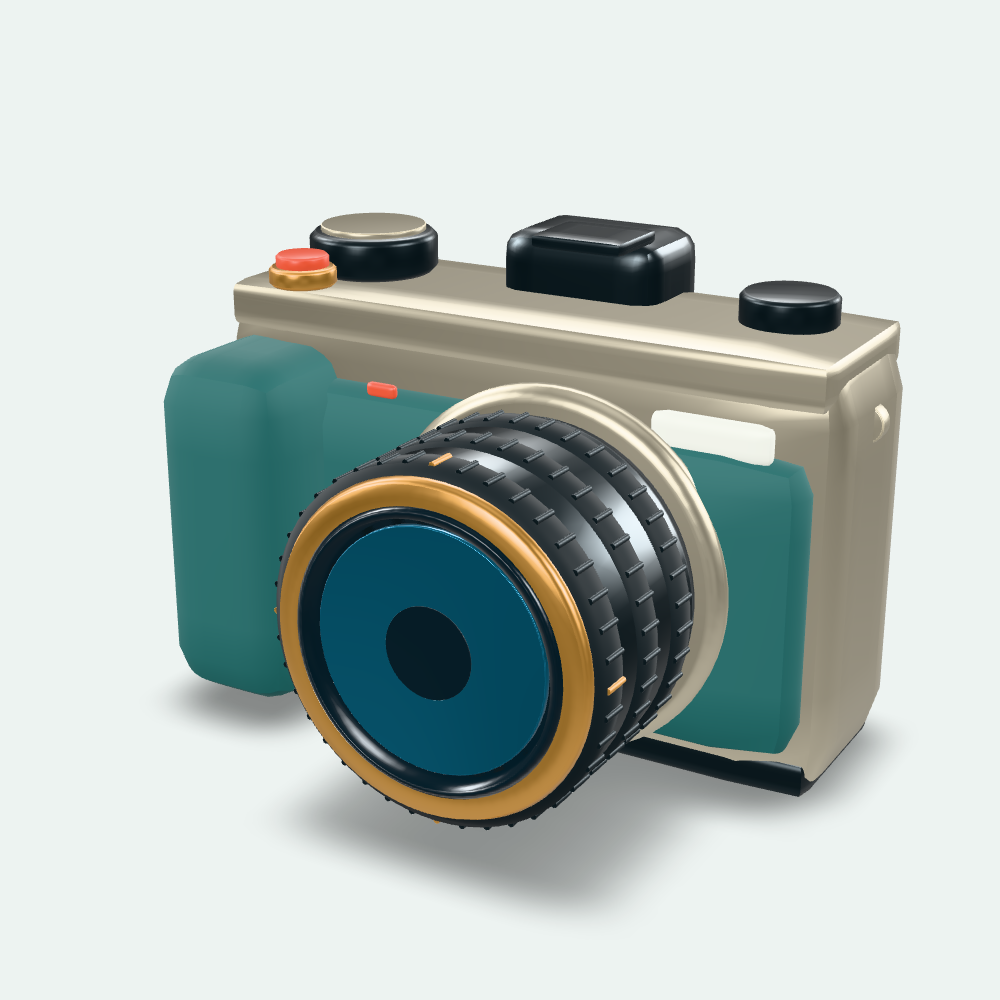
A product photograph provides a useful first impression. An interactive 3D model lets a visitor inspect another angle without leaving the page. The useful starting point is a model you already have the right to display, a clear poster image and a page where the extra interaction helps.
This guide uses Alharthiweb 3D Product Viewer 1.6.0. The standalone shortcode workflow is Free. Integration inside a supported WooCommerce product gallery is a separate Pro feature.
1. Prepare the model, not just a photo
Use a GLB file, a GLTF with embedded resources, or a ZIP containing one GLTF plus local BIN, PNG or JPEG resources. JPG or PNG alone cannot be rotated as a 3D object. This plugin does not perform photo-to-3D conversion, material editing or AR.
For a first test, use the included Studio Camera sample instead. It is bundled locally and does not publish a demonstration page. Models uploaded for display are public assets, so do not include confidential designs or resources you cannot redistribute.
2. Save a model and copy its shortcode
- Install and activate the Free plugin from WordPress.org.
- Open 3D Models and select Use ready sample, or upload your supported file.
- Inspect the preview, choose a meaningful model name and a poster, then select Save model.
- Copy the generated shortcode. Use the actual identifier shown on your site.
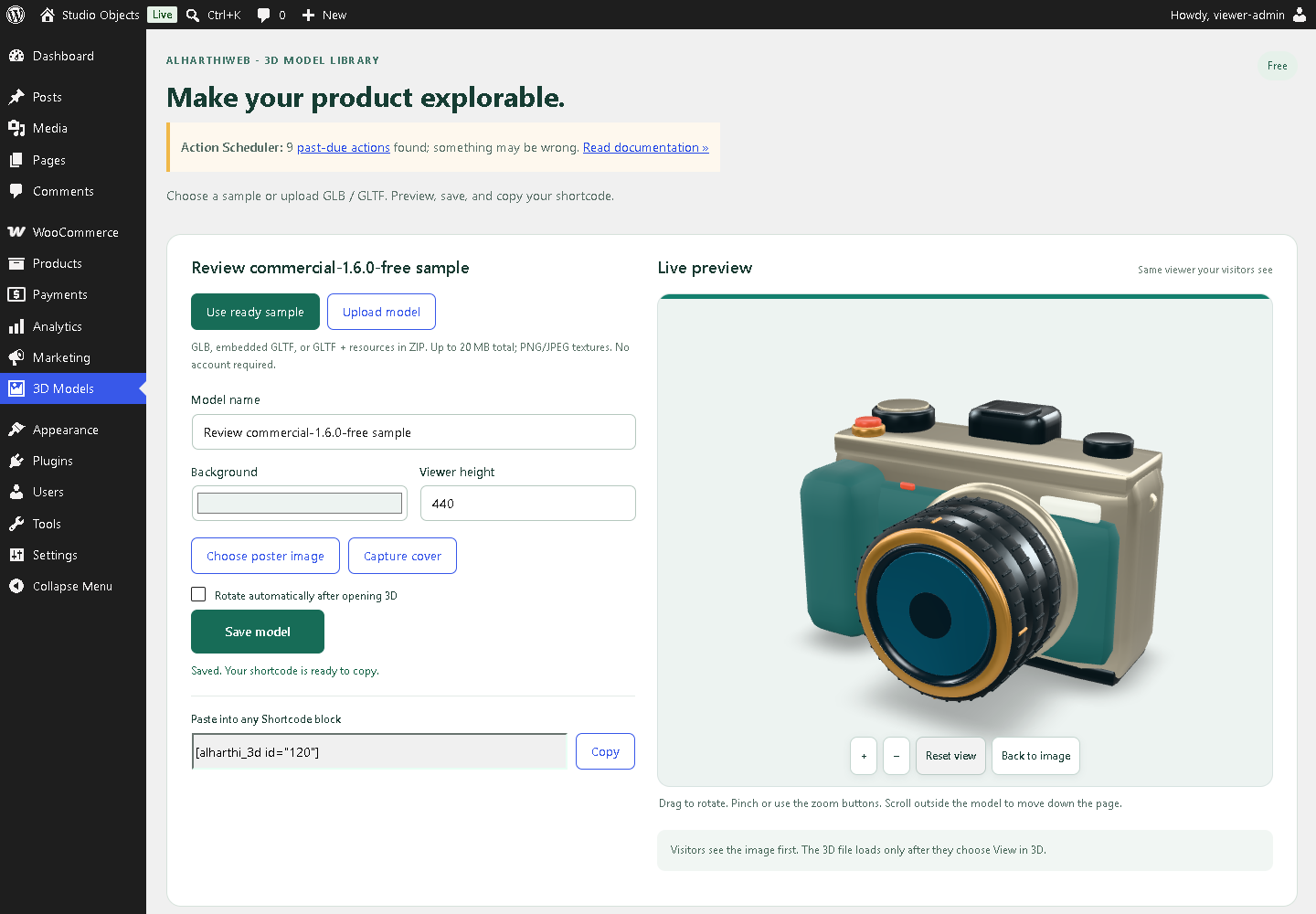
3. Add it to a page
In the WordPress block editor, add a Shortcode block and paste the copied shortcode. Preview the page before publishing. WordPress documents this insertion method in its Shortcode block guide.
Visitors see the poster first. They can choose View in 3D, drag to rotate and use touch or the zoom controls. Keep enough space around the viewer to scroll the page. Test keyboard focus and the actual page width as well as the model itself.
4. Add it to a product gallery with Pro
Keep the usual product image and gallery photographs. In the supported product editor, use Add 3D beside the image or gallery controls to select a saved model. Choose first, second or last placement. Enable the optional 3D thumbnail label and set a contrasting badge color so shoppers can recognize the interactive item.
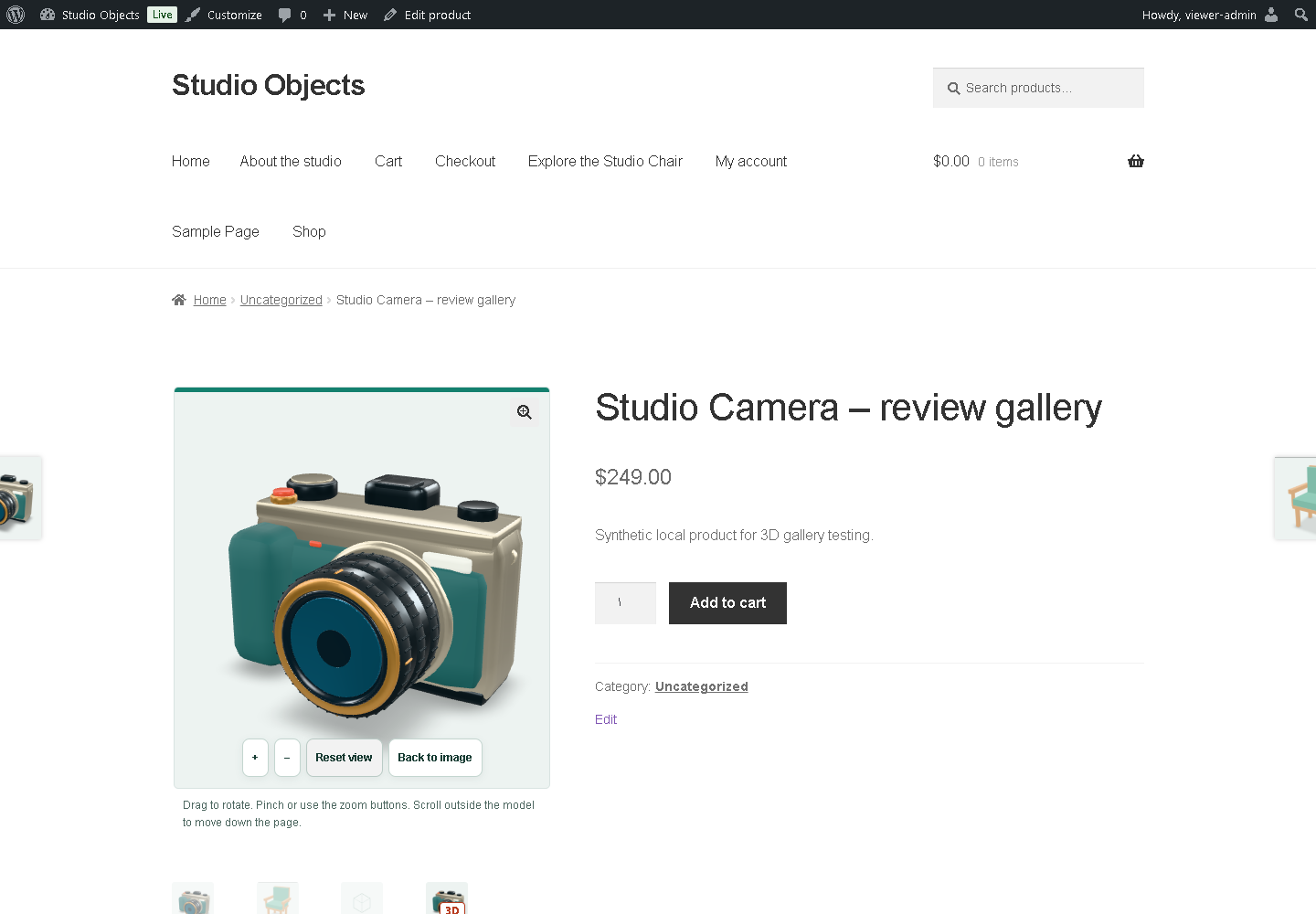
Ordinary images remain important for the catalog, cart and sharing. WooCommerce explains its native image and gallery workflow in Adding product images and galleries. This release was tested with the classic Storefront gallery; a theme or builder that replaces that gallery needs its own test.
5. Choose loading behavior and check a phone
Start with click-to-load. It avoids downloading the viewer and model before the visitor requests the interaction. Pro can explicitly enable immediate interaction for a product, but that trades a faster first interaction for more initial work and bandwidth.
Use a recognizable poster rather than a blank rectangle. Keep textures and model geometry reasonably small. Imports have limits: the normalized model is capped at 20 MB, ZIP extraction at 100 entries and 20 MB, and texture dimensions at 4096 pixels per side. Your hosting upload limit may be lower.
If a model does not open
- Read the import message and verify the actual format. External resource URLs and unsupported compressed extensions are rejected.
- For GLTF, check that resources are embedded or included locally in the ZIP. Renaming an OBJ or FBX file does not convert it.
- Try the included sample to separate a file problem from a viewer problem.
- Check the poster, retry after restoring the network and test the same page in a supported browser.
- If only the product gallery fails, test a staging copy with the classic gallery before changing the live store.
What was tested, and what still depends on your site
Release testing used WordPress 7.1.2, WooCommerce 11.1.2, PHP 8.3.35 and Storefront, with Edge desktop and a 390-pixel mobile viewport. The viewport check is not a physical-phone test. Safari, Multisite, MySQL and every custom theme or builder were not certified. Test a representative product and keep the normal images available before a wider rollout.
See the Free/Pro comparison and current annual plans. A useful 3D presentation starts with the right model and clear controls; it does not guarantee more sales or search rankings.