
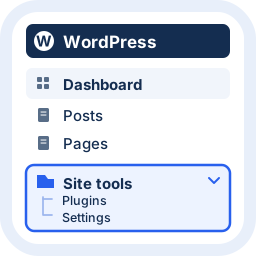
How to Organize the WordPress Admin Menu for Clients
Use Admin Organizer Free to keep everyday WordPress tasks visible, group site tools, preview changes and restore the original sidebar.
Give clients a clearer starting point
A busy WordPress sidebar can make a simple handover harder: the client needs Pages, Posts or Orders, while maintenance tools compete for attention. Alharthiweb Admin Organizer groups navigation without removing the underlying WordPress screens.
The Free edition includes one named group. Keep everyday work in Direct access and put occasional tools in a group such as Site tools. WordPress still decides which screens each user can access; this is not a permissions or security plugin.
1. Install and open the organizer
- Install Alharthiweb Admin Organizer from the official WordPress.org listing and activate it. Keep only one edition active.
- Open Settings > Admin Organizer, or select Organize menus in the top toolbar.
- Start with the default layout. Free organization does not require a paid license or an optional Freemius account; choose Skip if you do not want to connect.
The current Free release is 1.3.6. Its declared minimum requirements are WordPress 6.4 and PHP 7.4. Review the directory listing before installing on an older site.
2. Name your group and choose direct access
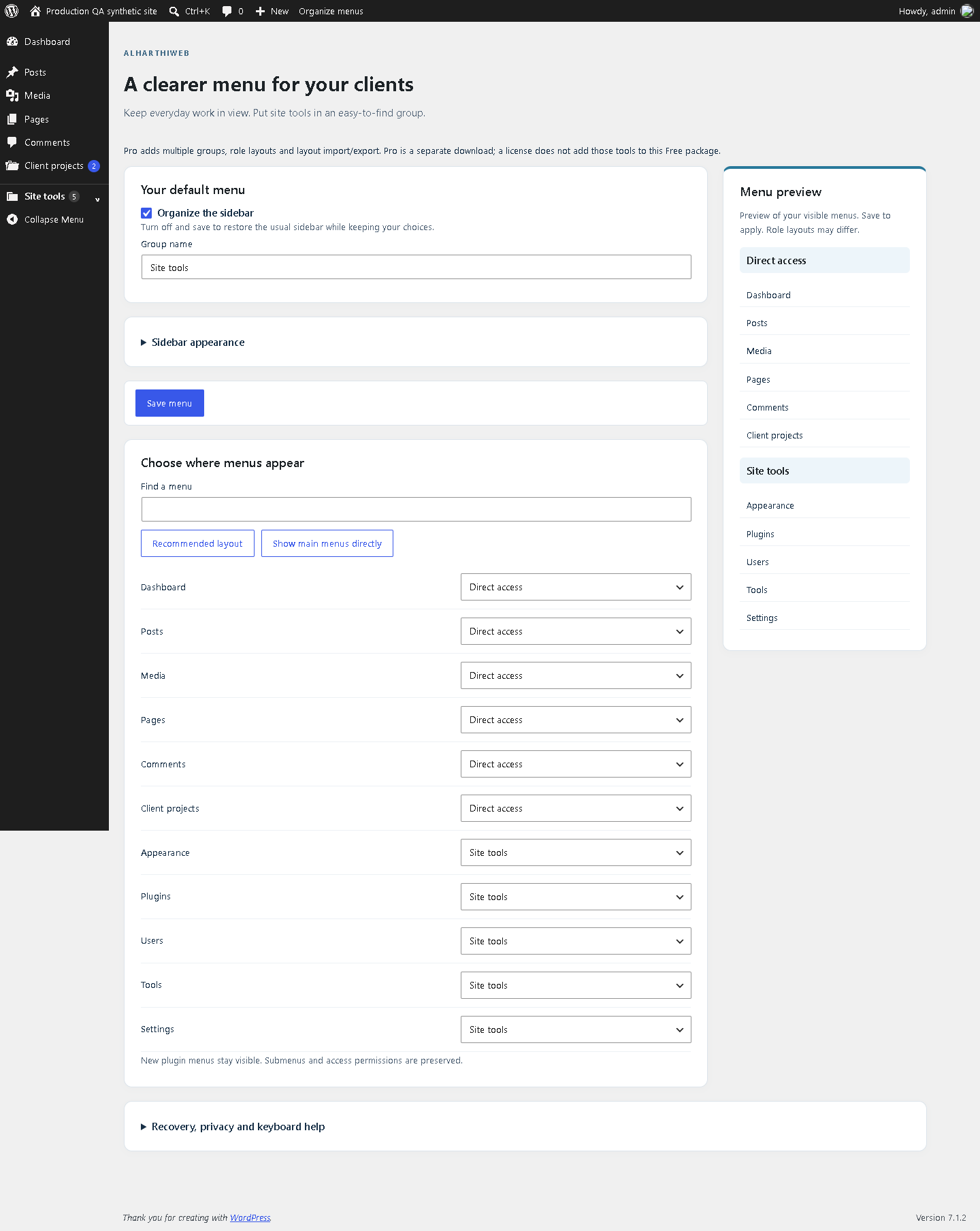
Leave Organize the sidebar enabled. Set Group name to a label your client understands. In Choose where menus appear, use Find a menu to locate an entry, then choose Direct access or your group from its placement control.
For a content-focused site, keep Posts, Media and Pages direct. Site tools can hold occasional administration links. Use the Menu preview to check your choices, then select Save menu. The preview is not a substitute for saving.
3. Check store submenus and the client account
On a WooCommerce site, open Submenus beneath a registered store menu to keep permitted entries with their parent, move them directly into the sidebar or assign the Free group. Operational Orders and Coupons are separate from similarly named Analytics reports; select the real task your client needs.
Open the saved sidebar and follow the actual links. Review the result using the client’s own account, because its WordPress capabilities may differ from the administrator’s. Grouping never grants a new permission, and a collapsed group does not securely hide a page.
Restore navigation without losing your choices
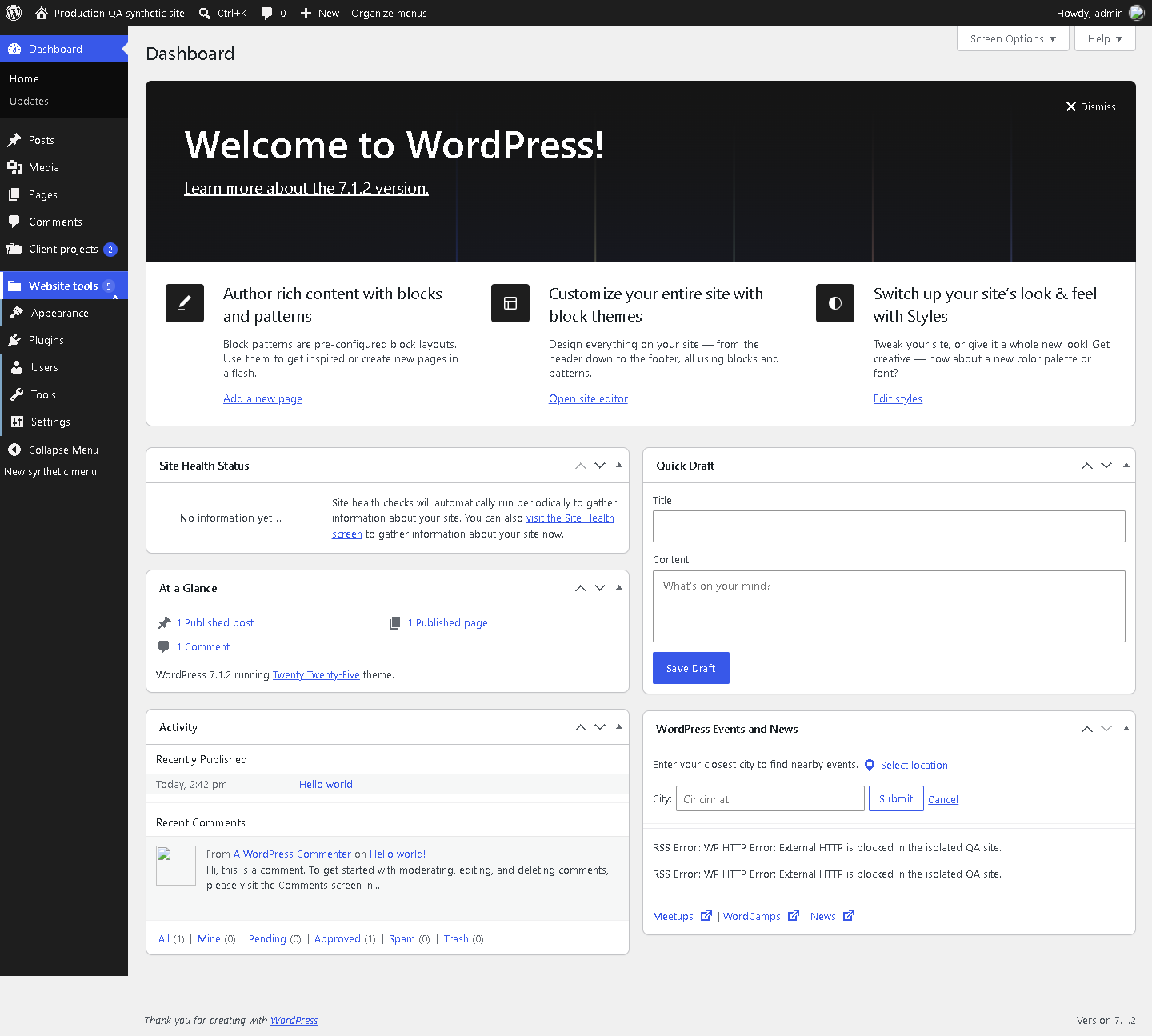
To return to the usual sidebar, turn off Organize the sidebar and select Save menu. Your choices remain stored. Deactivating the plugin also restores native navigation and styling. Use the toolbar or the plugin’s Settings link if you need to reach the organizer again.
Optional soft sidebar styling is independent of grouping. Turn it off and save to restore native styling. Newly discovered plugin menus stay directly accessible; settings for temporarily unavailable menus are retained.
What Free covers and what Pro adds
Everything in the basic one-group workflow above is included in Free: group naming, direct/group placement, live preview, menu search, recommended reset and recovery. Standard permitted submenu links remain available.
Separate Pro layout tools add multiple groups, role layouts and layout import/export. They are not included in the Free ZIP. This tutorial does not offer Pro for sale or require it for the demonstrated workflow; use the official Free download to begin.
Frequently asked questions
Does this hide admin screens securely?
No. It changes navigation presentation. Use WordPress capabilities and an appropriate permissions design for access control.
What happens without JavaScript?
Groups stay expanded and permitted links remain available. Live preview and search need JavaScript; saving menu choices does not.
Can I undo my menu layout?
Yes. Turn off organization and save, or deactivate the plugin. Existing choices are retained.
Will every third-party menu work?
Standard WordPress admin menus are supported. A plugin that replaces the sidebar or changes its markup may need a compatibility check.
Does it change the language of the site?
The plugin’s own interface uses English. Your custom names and other plugins keep their existing language.
Reviewed against Free 1.3.6 on 28 October 2026. Screenshots are from the published plugin listing.