
How to Receive WooCommerce Order Notifications in Telegram
Connect Alharthiweb Order Alerts, test your Telegram destination and choose what order information your team receives. Includes setup and delivery troubleshooting.
Give your team the order details they need
A packing team often needs the products, variations and quantities in an order without navigating another dashboard. Alharthiweb Order Alerts sends those details to a Telegram destination you configure. Start with one destination before adding team-specific workflows.
The screenshots use a synthetic test store. Telegram accepting a message is different from an employee reading it, and a new-order alert is not confirmation that an order has been paid. Check the order and payment status before fulfillment.
Before you connect
You need a WordPress site with WooCommerce active, permission to manage its settings, a Telegram account and a bot you control. Install the edition supplied through the product page or your Freemius purchase account. The Free edition is available from the official WordPress.org listing.
The declared minimums are WordPress 6.4, WooCommerce 8.9 and PHP 7.4. Use a staging store and synthetic order for your first check. Free supports one destination. Pro is optional for this basic workflow.
Keep the bot token private. Customer information is optional: choose the minimum details the intended recipient needs and ensure your store is authorized to share them with Telegram.
1. Create or connect your Telegram bot
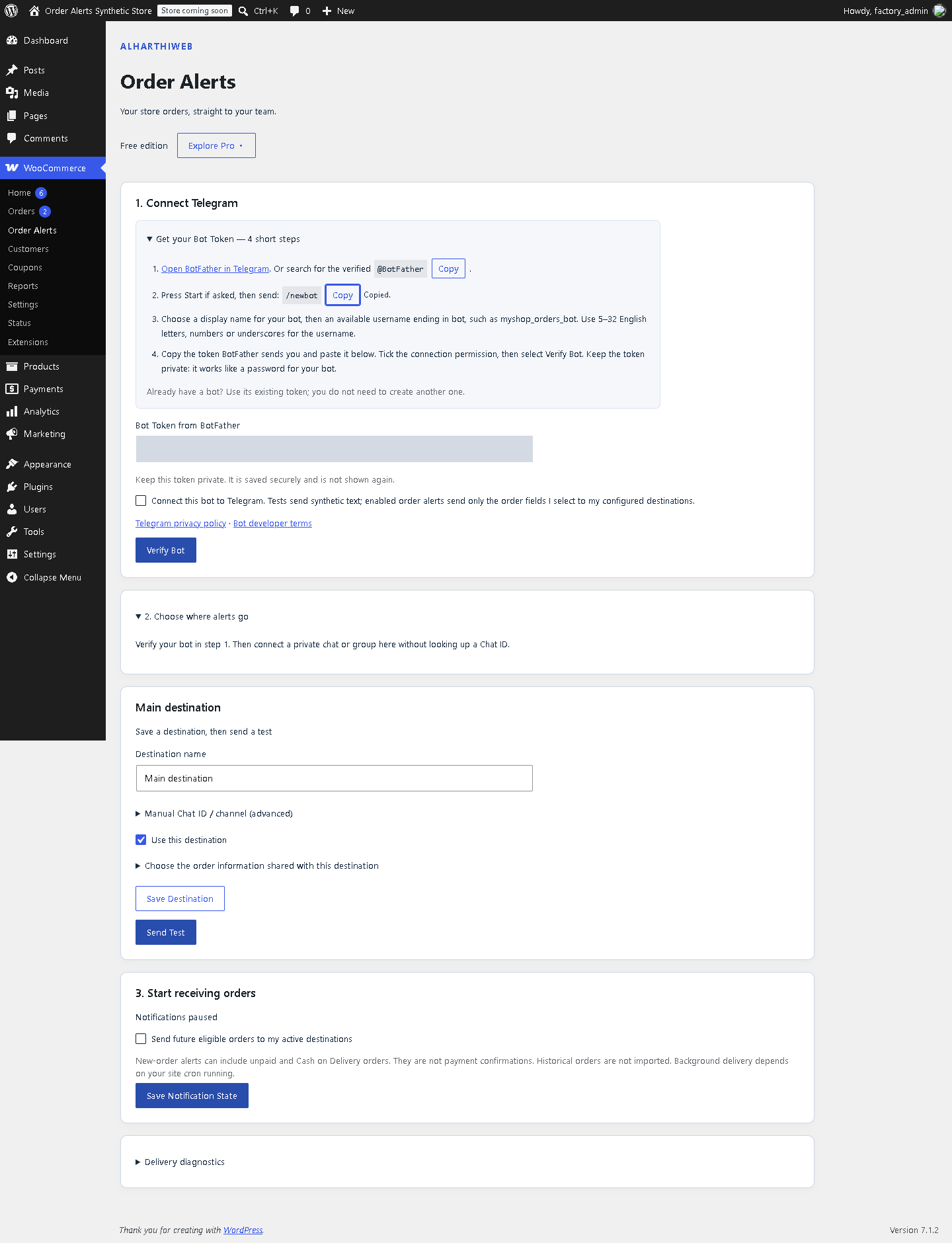
Open WooCommerce → Order Alerts and expand the built-in bot setup instructions. They include a direct link to the verified @BotFather account and copyable public commands. If you already have a suitable bot, use its existing token.
- Open @BotFather in Telegram and press Start if asked.
- Send /newbot, choose a display name, and choose an available username ending in bot.
- Copy the token from BotFather into the plugin’s Bot Token field. Do not post it in a team chat or support screenshot.
- Read and tick the Telegram connection permission, then select Verify Bot. Confirm the plugin identifies the intended bot.
2. Pair the intended destination
Use the guided private-chat or group link. For a private chat, open the bot and press Start. For a group, add the bot to the intended group and send the displayed pairing command. Return to WordPress and select Find My Destination, then confirm the matching destination.
Only pair a chat whose members should receive these order details. If discovery expires, start it again and repeat the displayed command. Manual Chat ID entry remains available under the advanced fallback; a bot shared with another integration may require that route.
3. Send a test, then enable order alerts
Save the destination and select Send Test. Check both the WordPress success message and the actual Telegram recipient. A successful test confirms Telegram accepted that request; it is not proof that every future request will arrive or be read.
Enable future notifications only after the test succeeds. Place a synthetic order through your staging checkout and compare the received product names, variations and quantities with the order. Use the admin order link only with an authorized WordPress login. Employees can read the Telegram summary without a WordPress account.
4. Choose what each recipient sees
Expand the destination’s information choices before enabling personal fields. Share customer name, phone, address or notes only when needed. Useful populated fields appear in the message; empty values are omitted. Genuine Arabic product names and notes are preserved.
An optional delivery-location action can use valid coordinates already saved by Kikote. This plugin does not collect a map pin, geocode an address or make an incompatible checkout integration compatible. Keep that field off when the recipient does not need it.
When separate team destinations help
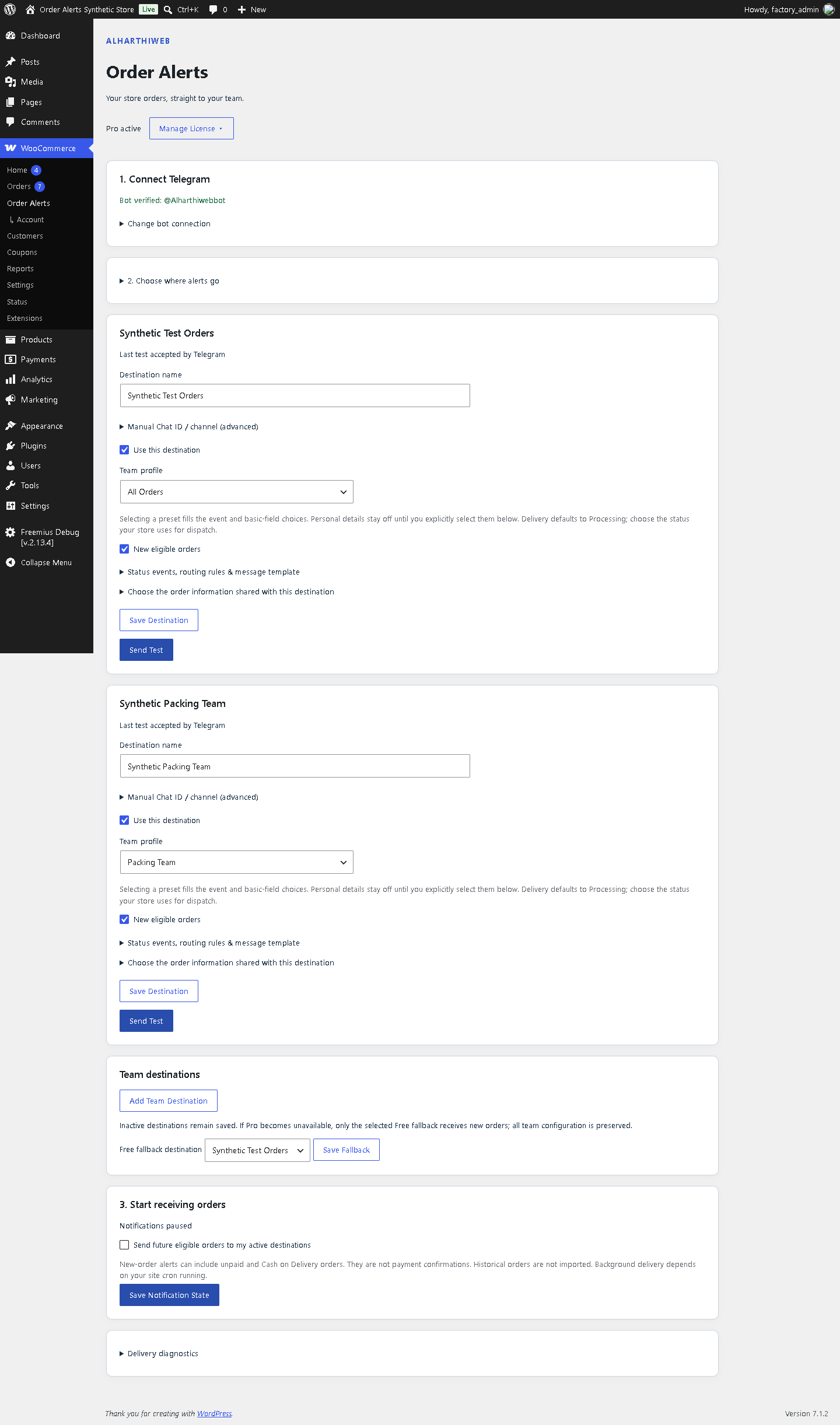
Pro adds destinations for different teams, each with its own sharing choices. A packing destination can receive products and quantities while a manager sees the information needed for their role. Optional rules and selected status events narrow which orders each destination receives. Safe message templates provide a supported way to adjust the summary.
Install the Premium ZIP from your Freemius account and use Activate License near the top of the plugin screen. Licensed installations show Manage License in the same location. When Pro entitlement expires, the selected Free destination continues its new-order workflow; saved team settings are retained.
If a notification does not arrive
Check that the bot is permitted to send to the selected chat, the destination is saved and verified, and notifications are enabled. Check that WordPress scheduled tasks are running; queued delivery depends on background processing.
Use Delivery diagnostics to distinguish an accepted request, an explicit temporary rejection and an uncertain result. Temporary rejections receive bounded retries. For an uncertain outcome, inspect the Telegram chat before deciding to resend, since the first message may already exist.
If Send Test says Telegram is temporarily busy, wait and select Send Test again; this manual test is not automatically retried. Repeated setup errors should be investigated before enabling alerts on a production store.