PRACTICAL PLUGIN GUIDE
WooCommerce Telegram Alerts: A Packing Team Handover Checklist
Test one destination, select useful order fields and define how staff should act on Telegram alerts before a busy shift.
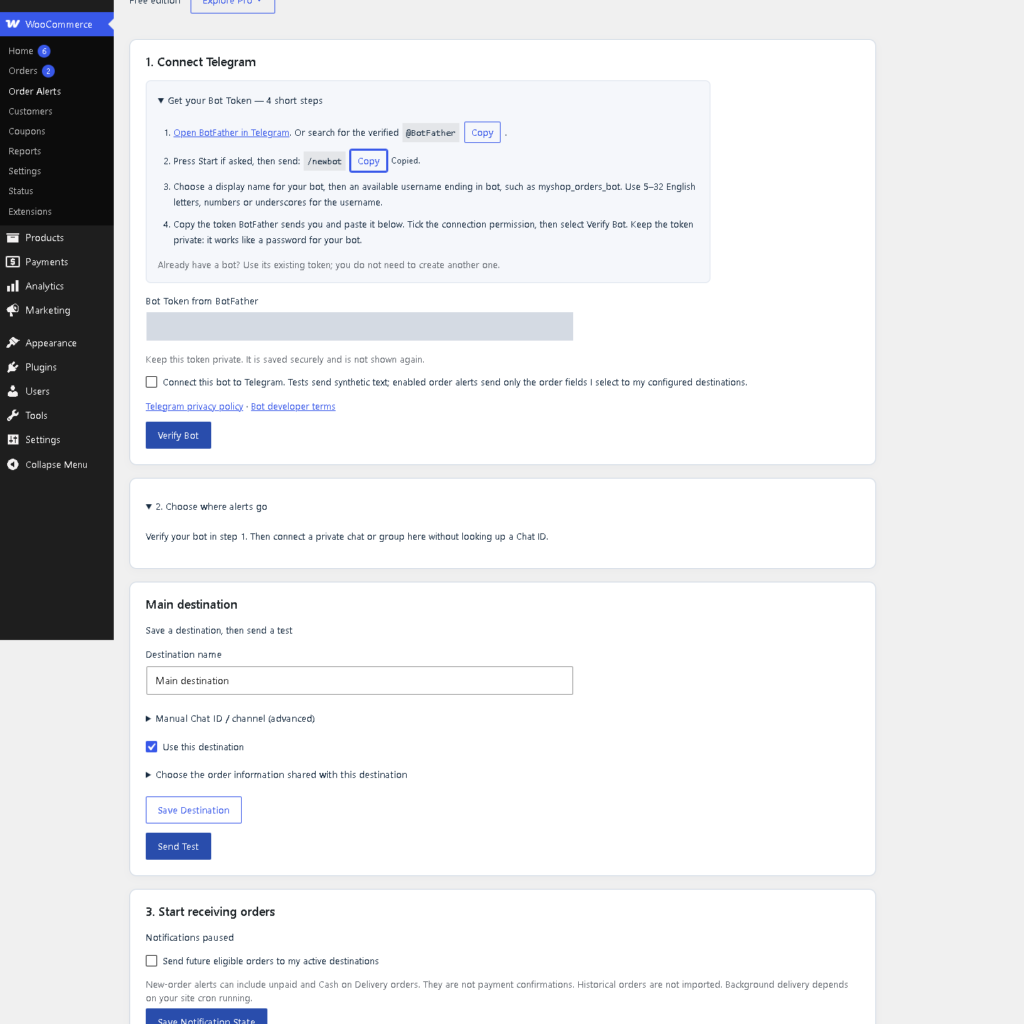
A Telegram order alert is useful only when the receiving team knows what to do with it. Before handing a WooCommerce store to packing staff, test the complete journey from a synthetic order to the correct chat. This checklist focuses on day-to-day handover after the bot connection is configured.
1. Decide who should receive the alert
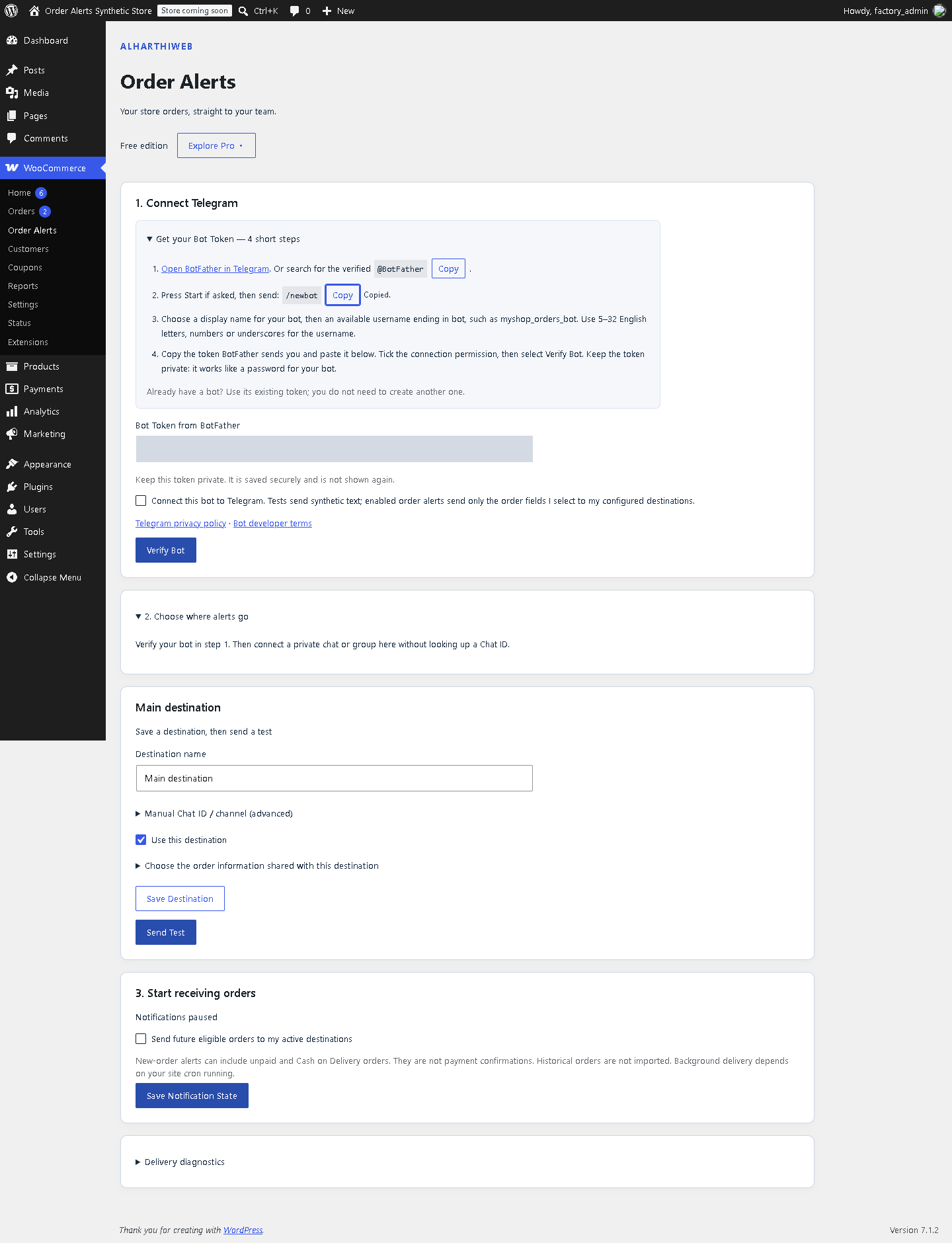
Choose one destination for the Free workflow and check its actual membership. A shared packing chat should contain the people responsible for preparing orders. Use the existing setup guide below to verify the bot and pair the destination before testing order delivery.
Write down who maintains the bot connection and who can check the WooCommerce order when a message is unclear. Staff can read the Telegram summary without a WordPress account; an admin order link still needs an authorized login.
2. Select the information the team actually uses
Start with products, variations and quantities. Decide whether the recipient also needs customer contact details, address or notes before enabling those optional fields. Do not use a real customer’s order for the initial exercise.
Create a synthetic order with two different products and, if your store uses them, a variation. Include a test note only if that field is part of the agreed workflow. Compare the received names and quantities with the WooCommerce order rather than assuming a successful test message checks every order field.
3. Separate an order alert from permission to dispatch
A new-order notification can describe an unpaid or Cash on Delivery order. It is not a payment receipt. Give the team a clear instruction for checking the order’s payment and fulfillment status before dispatch. The correct rule depends on your store’s own payment workflow.
If a long notification is shortened, staff should use an authorized source for the remaining order details. Do not treat a truncated summary as the complete packing list.
4. Agree on a missing-message procedure
- Check the intended Telegram destination and the matching WooCommerce order.
- Inspect Delivery diagnostics to distinguish an accepted request from a failure, retry or uncertain result.
- For an uncertain result, inspect the chat before manually resending; the first message may already exist.
- If background delivery stops, ask the site maintainer to check WordPress scheduled tasks and the saved connection.
Telegram accepting a request does not mean someone read it. Decide how the team acknowledges work using its existing process. Avoid testing repeated resends against real orders merely to see whether notifications appear.
5. Leave a short handover note
- The intended chat and responsible maintainer.
- The fields staff should expect and where to find omitted details.
- The store’s dispatch check for unpaid and Cash on Delivery orders.
- What to do when a message is missing, shortened or uncertain.
Repeat the synthetic-order check after a material change to checkout fields, the destination or the bot connection. The basic one-destination checklist works in Free; separate destinations and status-change workflows belong to Pro.
Continue with the plugin
Explore Alharthiweb Order Alerts, read the complete setup guide, or download Free from WordPress.org. This guide covers the Free workflow in version 1.1.4.