PRACTICAL PLUGIN GUIDE
Why WooCommerce Barcode Labels Print Too Large or Too Small
A practical checklist for matching label dimensions, browser scaling and paper settings before printing a batch.
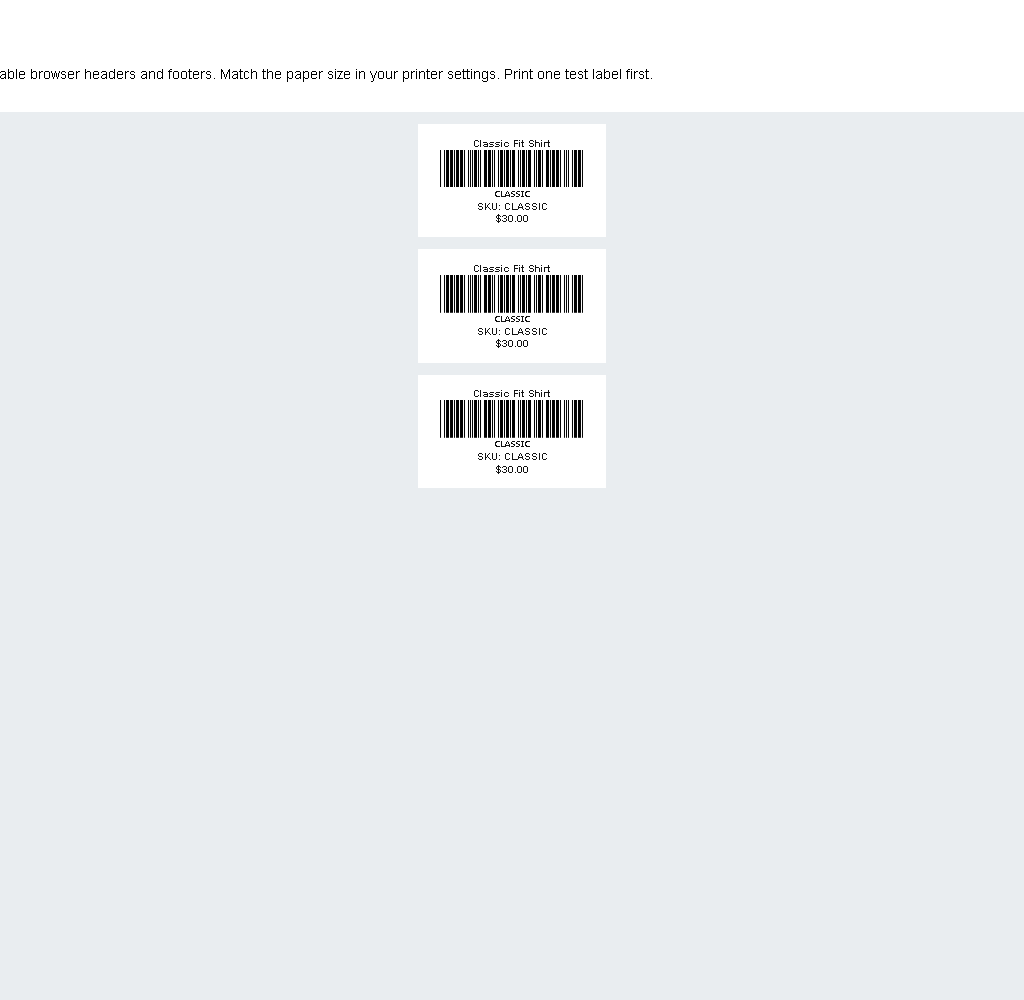
A label can look correct in the preview and still print at the wrong size. Before changing your product data, check the label dimensions and the browser print settings. This guide uses Alharthiweb Barcode Labels and starts with a single test label.
1. Match the label dimensions to your stock
Measure the physical label or read its packaging. In the label designer, choose a matching preset, such as 50 × 30 mm or 40 × 25 mm, or enter the required custom dimensions. A preset is a starting point: confirm that it matches the paper you actually loaded.
2. Preview one product
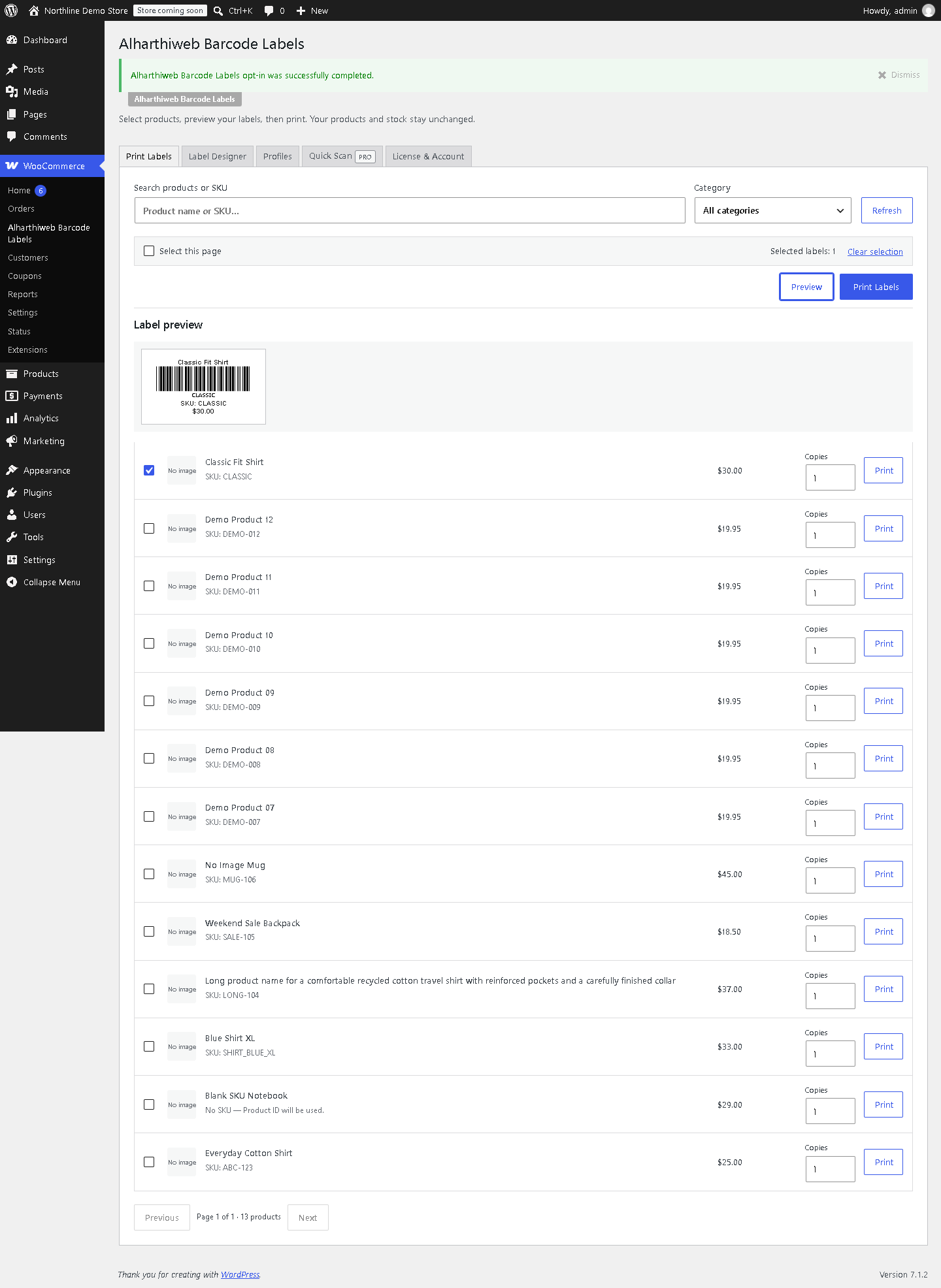
Open WooCommerce → Alharthiweb Barcode Labels, select one product and set its copies to one. Check the product name, barcode value and any visible price in the preview. Use a product with an identifier supported by your selected barcode format. Do not alter an SKU merely to make a print test fit.
3. Check the browser print dialog
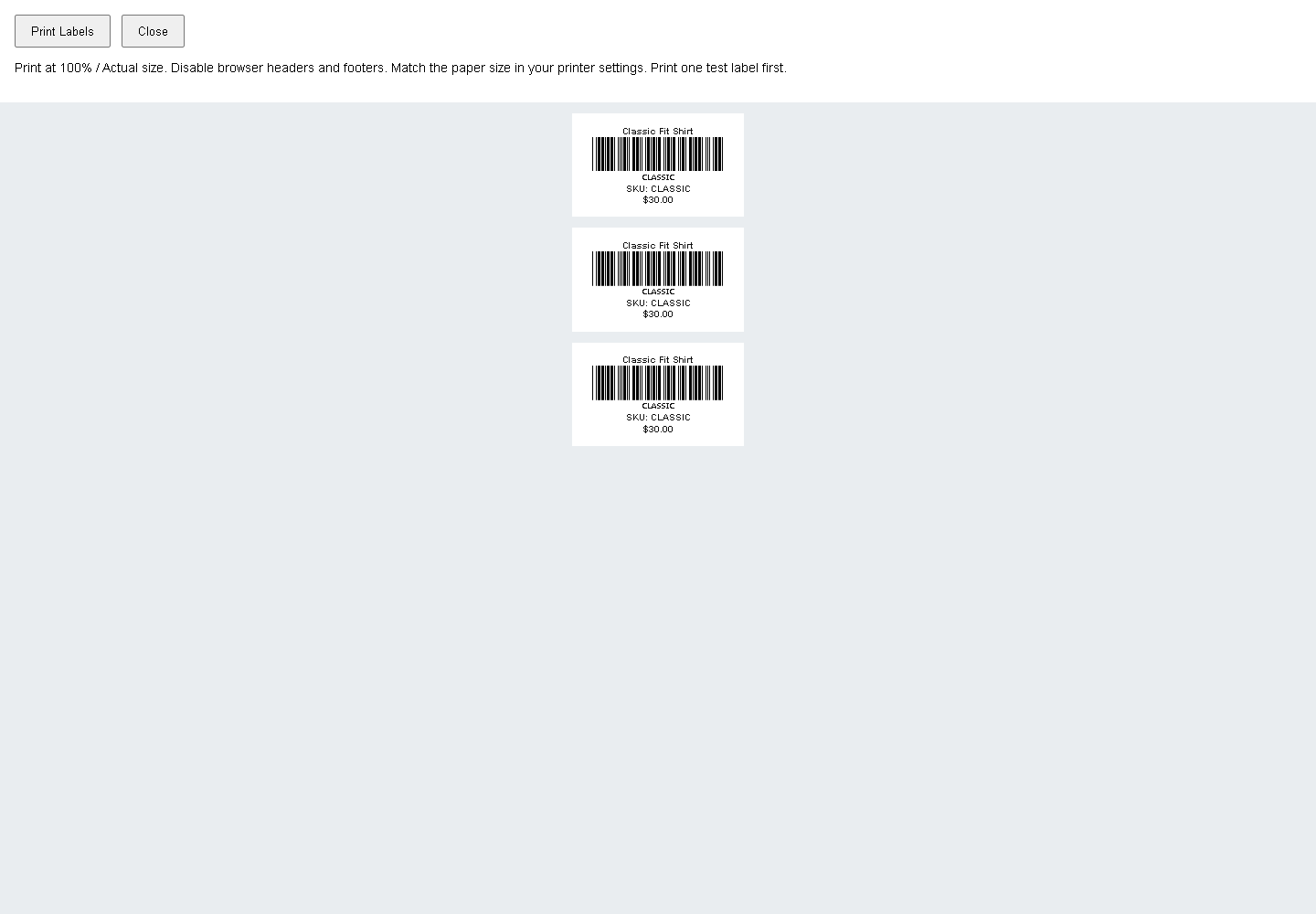
Open the plugin print document, then its Print Labels action. Select the paper size used by your printer. Start with 100% or Actual size rather than a fit-to-page option, and turn off browser headers and footers. Browser and printer-driver labels differ, so verify the settings shown by your own setup.
4. Print and measure one label
Compare the printed width and height with your intended dimensions. If both dimensions have changed by the same proportion, recheck scaling. If the size is right but the position is wrong, inspect the paper orientation and margins. Adjust one setting at a time and repeat the single-label test before printing the batch.
5. Save a repeatable workflow
Free supports label previews, chosen copy quantities and built-in presets. Pro also offers saved custom printer designs. Once a small test is correct, use the same paper and print settings for the larger run. Universal printer compatibility is not claimed; hardware, drivers and browser settings can affect the result.
6. Check alignment across a sheet
When using sheet labels, test a row near the top and another near the bottom. A growing offset can point to an incorrect row gap or paper setting even when the first label looks right. Check horizontal spacing separately. Keep one written note of the preset, paper, orientation and scale that worked so a different operator can repeat the test.
Finally, scan a printed test label with the scanner used in your own workflow. A correct preview or successful print does not by itself prove that the physical barcode is readable. Inspect clipping and print contrast before increasing the number of copies.
Continue with the plugin
Explore Alharthiweb Barcode Labels, read the complete setup guide, or download Free from WordPress.org. This guide covers the Free workflow in version 0.4.5.