PRACTICAL PLUGIN GUIDE
How to Test International Phone Fields in WordPress Before Launch
Check country selection, pasted prefixes, keyboard input and WooCommerce Classic Checkout before making a phone field part of your live workflow.
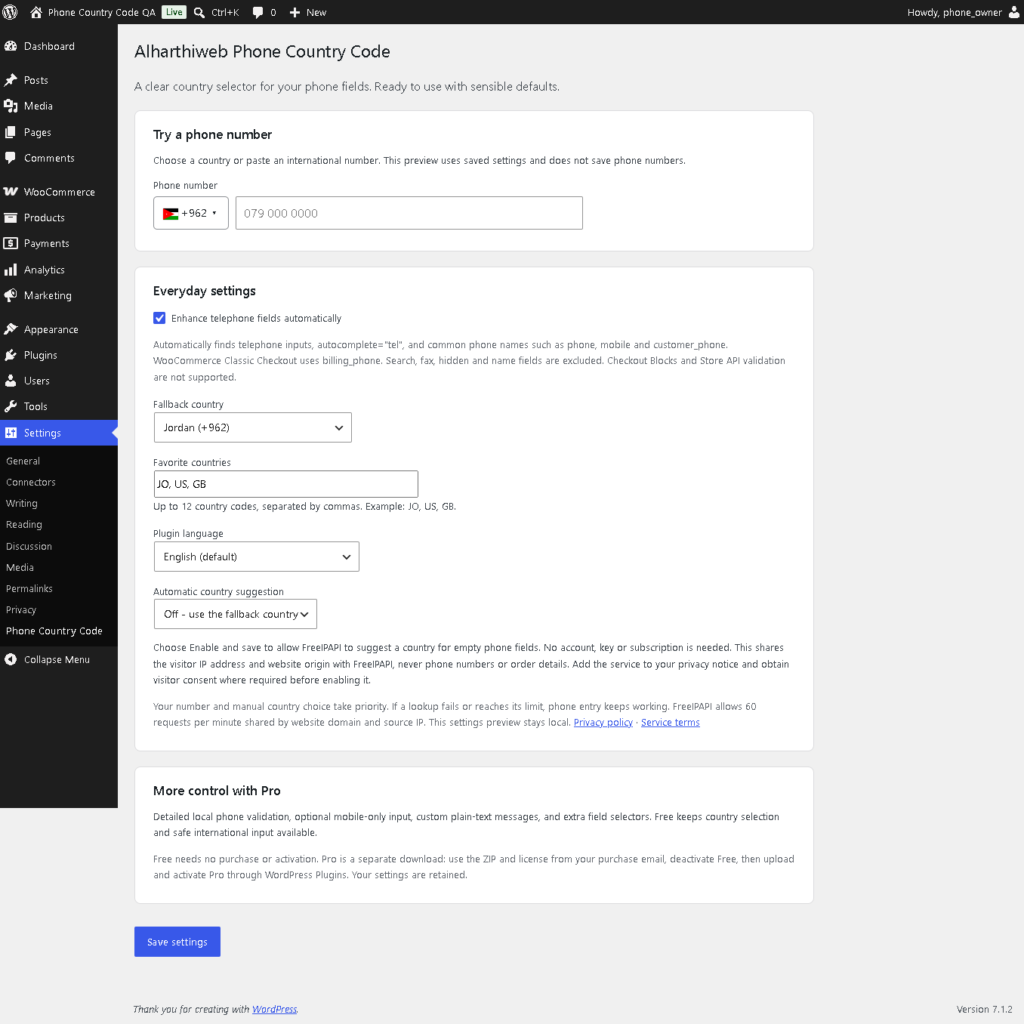
A country flag beside a phone field is a helpful cue, but it does not prove that a form saves the intended number. Before launch, test country selection and phone entry on the actual form. Alharthiweb Phone Country Code Free provides selection and normalization; the form or checkout still controls submission and storage.
1. Identify the form you are testing
Use a staging copy or a clearly marked test form with synthetic data. Record its URL and whether it is a contact form, an ordinary telephone input or WooCommerce Classic Checkout. Check the rendered field, not just the form builder’s label.
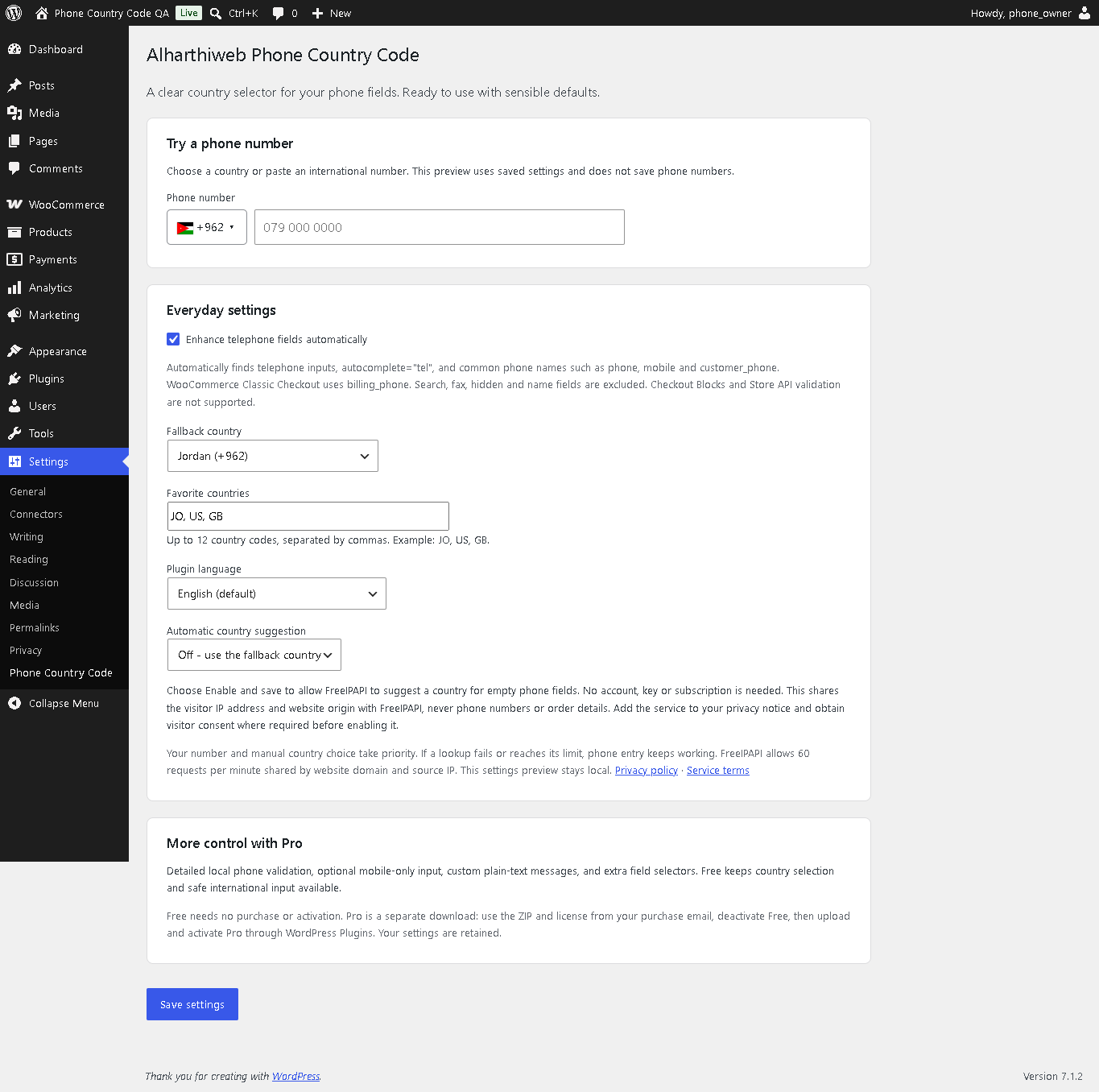
The plugin recognizes editable telephone inputs and common phone-field conventions. Search, fax, hidden, disabled and read-only fields are not equivalent to ordinary phone fields. For WooCommerce, the documented integration is Classic Checkout billing_phone. Checkout Blocks and Store API validation are not supported.
2. Test an empty field and a manual selection
Open Settings > Phone Country Code, save a fallback country and useful favorites, then try the local preview. Leave optional IP country suggestion off for this first test so the starting conditions are easy to repeat.
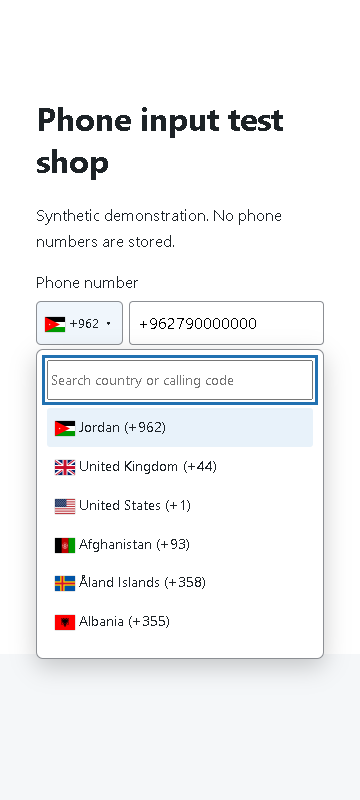
On the actual form, open the country list, search for a country and choose it. Repeat using the keyboard. Confirm that the country list fits the screen and that the phone field remains usable on a mobile-sized browser.
3. Test pasted international prefixes
Choose one country, then paste a synthetic international number with a different explicit prefix. Check a leading + and a leading 00 separately. The explicit prefix should take priority over the earlier selection; inspect the resulting value for a duplicated calling code.
Repeat the input using Arabic or Persian digits if those are common for your audience. Keep a note of the original test input and the displayed result. Do not use an actual customer’s contact details, and do not call or send messages to the sample number.
4. Check the submitted value
Leave the field and submit the test form through its normal workflow. Compare the value received by your own form handler or synthetic WooCommerce order with what you intended to enter. A correct-looking field does not by itself test another plugin’s storage rules or email formatting.
If the field is replaced after a checkout update or a dynamic form opens, repeat the interaction there. Test compatibility with the plugin that renders the input rather than assuming that all forms share the same markup.
5. Know what the result means
Free normalizes input; it does not reject every incomplete or impossible number. Detailed format validation is separate Pro functionality. Even a number that passes a format check has not been verified as existing, owned by the visitor or able to receive an SMS. No OTP service is included.
Finish with a small test record: form URL, desktop/mobile result, manual country selection, explicit prefix result and submitted value. Retest after changing the form plugin or checkout. Keep optional external country suggestion as a separate configuration decision, with its settings disclosure reviewed before enabling it.
Continue with the plugin
Explore Alharthiweb Phone Country Code, read the complete setup guide, or download Free from WordPress.org. This guide covers the Free workflow in version 1.8.7.