PRACTICAL PLUGIN GUIDE
WordPress Client Handover: Check the Admin Menu Before Launch
A practical handover checklist for checking menu destinations, keyboard access, existing permissions and recovery with Admin Organizer.
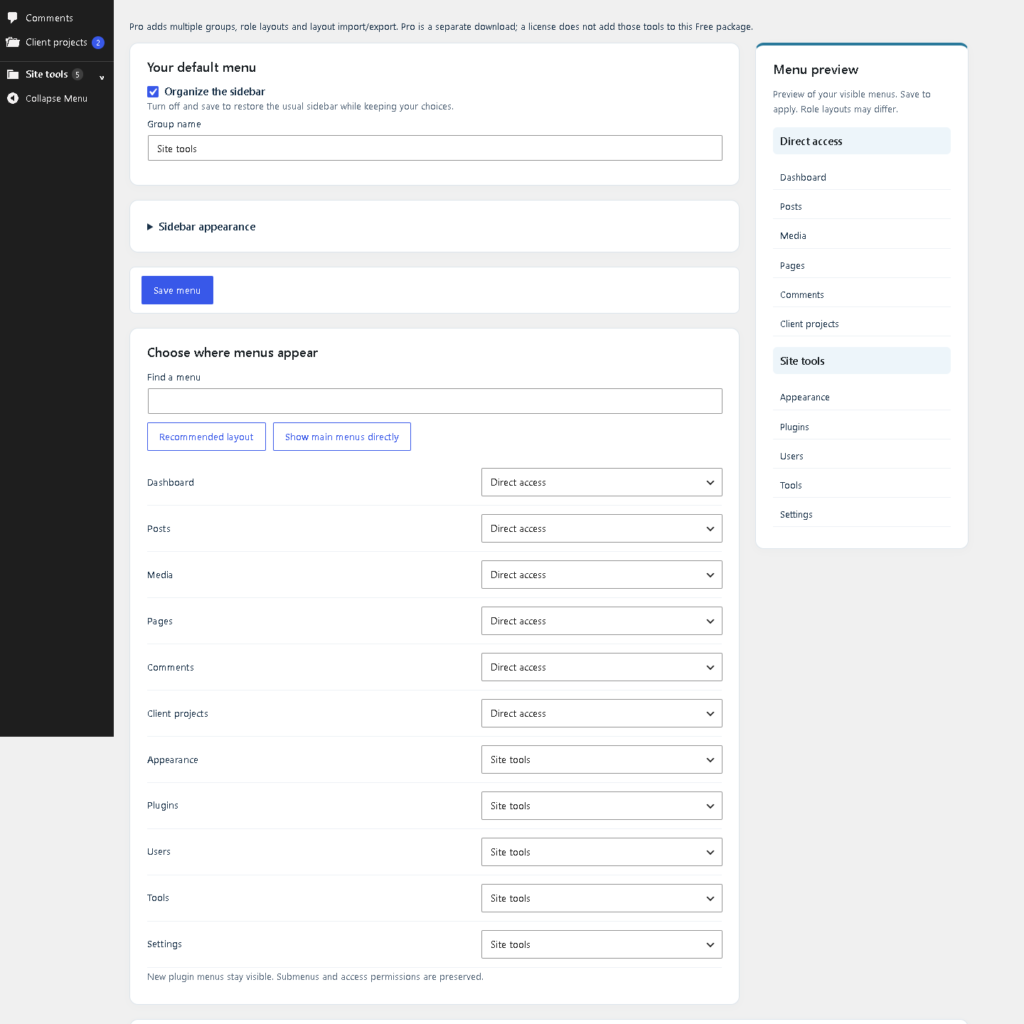
A tidy sidebar can still confuse a client if the link they need is hard to find. After arranging the WordPress admin menu, test a few real tasks before the handover. Alharthiweb Admin Organizer can group site tools while leaving everyday work directly accessible; this checklist checks the resulting experience.
1. Start from the client’s tasks
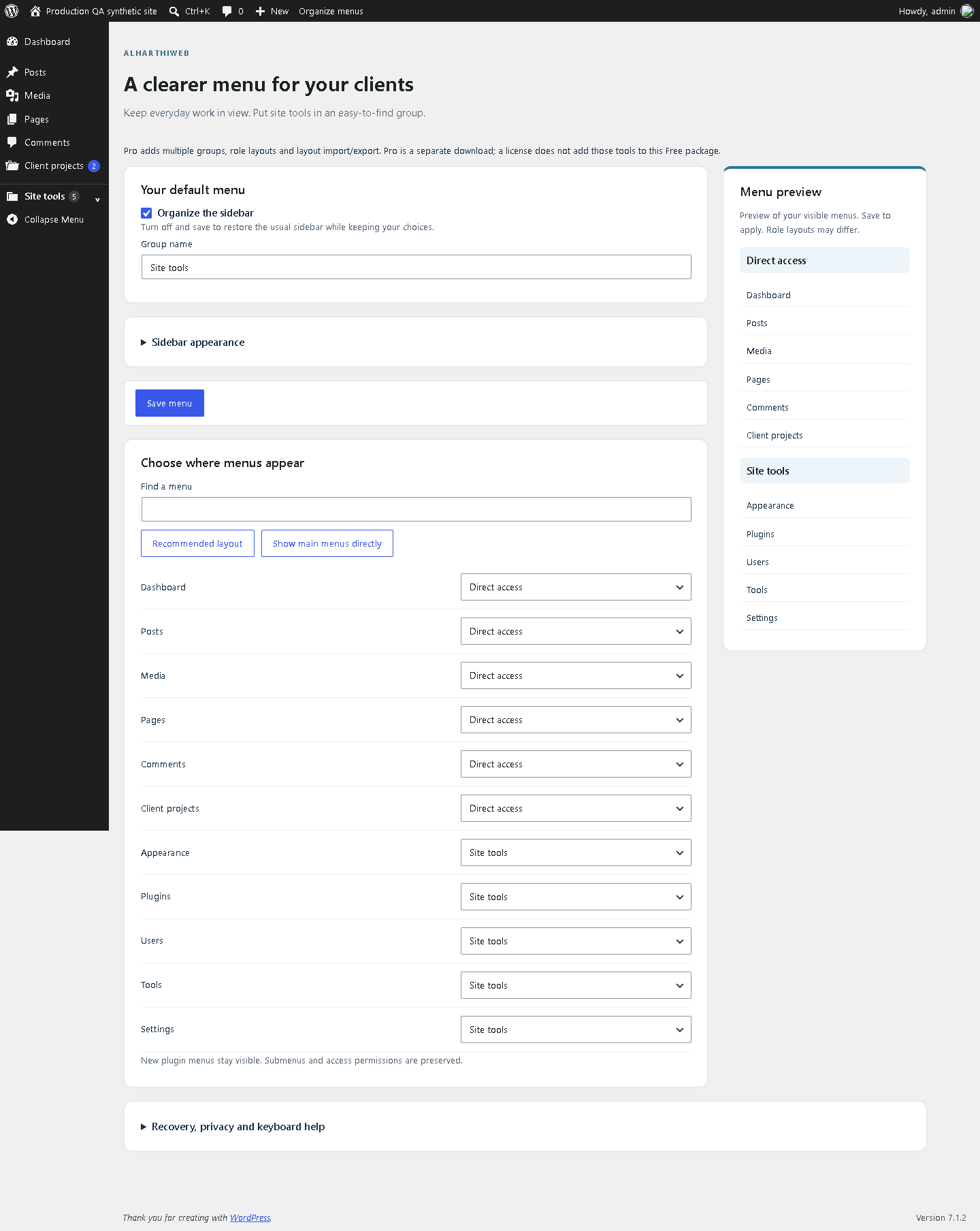
Write down three tasks the client actually performs, such as editing a page, uploading an image or reviewing an order. Map each task to its current WordPress screen. Keep frequently used destinations easy to reach and choose a plain group name for less frequent tools.
If you have not configured the layout yet, use the setup guide below. In Free, one named group and direct placement are sufficient for a simple handover. Do not introduce multiple groups or role layouts as though they were Free features.
2. Check the intended account, not only the administrator
Use the client’s existing authorized account, or a staging account with the same intended role, to open the destinations on your task list. An administrator’s preview is not evidence that another role has permission to use every screen.
Admin Organizer changes presentation, not access control. A grouped or collapsed link does not secure the underlying page. If someone can access an inappropriate screen, review the site’s permissions separately; moving a menu is not a fix for that problem.
3. Follow submenu destinations
Open a menu and try the relevant submenu links. On a store, distinguish the operational Orders screen from an Analytics report with a similar name. The plugin uses registered WordPress menus, so test the actual destination rather than judging only by the sidebar label.
Check any plugin that replaces or heavily customizes the admin sidebar. Standard menu support does not guarantee that every third-party replacement behaves identically. Keep a note of any exception in the handover instructions.
4. Try keyboard navigation and a narrow window
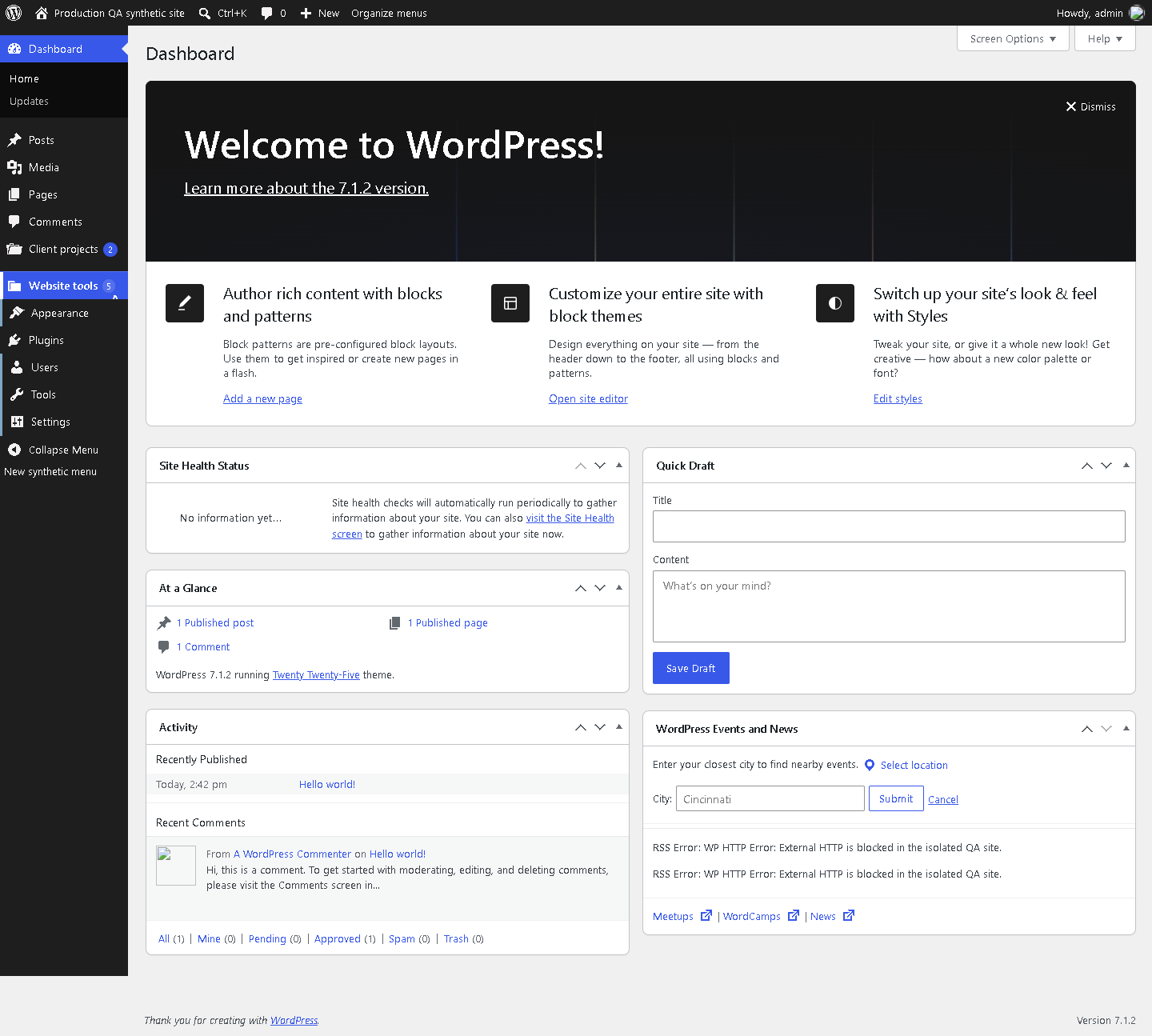
Move through the sidebar using the keyboard, open the group and follow a link. Check that focus remains visible and that the client can reach the same destinations without relying on a mouse. Resize the browser to the smaller screen the client is likely to use and inspect longer group names.
On a test site, also check the fallback with JavaScript disabled: groups remain expanded and permitted links stay available. Live preview and search need JavaScript, so do not confuse their absence with a missing permission.
5. Demonstrate recovery once
Show the maintainer how to open Settings > Admin Organizer using the toolbar or the plugin’s Settings link. Turning off Organize the sidebar and saving restores native navigation while retaining choices. Deactivation also restores the usual navigation and styling.
End the handover with a short list of the daily destinations and the recovery route. Recheck it after adding a plugin: newly discovered menus remain directly accessible until you decide where they belong.
Continue with the plugin
Explore Alharthiweb Admin Organizer, read the complete setup guide, or download Free from WordPress.org. This guide covers the Free workflow in version 1.3.6.